Bonrix Software Systems
Bonrix CRM Hybrid Auto Dialer App |
Step-by-Step Guide
Streamline your outreach with the Bonrix CRM Hybrid Auto Dialer. This guide simplifies the process: log in, connect your Android device, and manage your leads—from initiating "Call Now" actions to scheduling follow-ups and viewing call history—all through a single, intuitive interface.
1. Login
2. Connect
3. Call Now
4. Manage Leads
Bonrix CRM Hybrid Auto Dialer App
Solution Provided By
Bonrix Software
Bonrix CRM Hybrid Auto Dialer App
Step-by-Step Guide
📱
Welcome to the official guide for the Bonrix CRM Hybrid Auto Dialer App! Follow these simple steps to get started, connect your device, and maximize your productivity. This tool is designed to simplify your outreach, manage leads, and handle follow-ups with professional accuracy.
Step-by-Step Productivity
✦ Bonrix CRM Hybrid Auto Dialer App ✦
The Bonrix CRM Hybrid Auto Dialer App is a sophisticated solution designed to enhance the efficiency of telecalling operations by automating the dialing process. By integrating directly with CRM workflows, the app streamlines lead management, allowing teams to systematically work through their contact lists without the manual effort of dialing each number individually. This automation ensures a smoother outreach process, helping sales and support teams maintain higher activity levels while reducing the repetitive tasks that often slow down daily productivity.
Beyond its core dialing functionality, the application provides essential tools for tracking call outcomes and managing customer interactions within a unified system. Users can monitor performance, log call status, and ensure that lead data is consistently updated, creating a clear audit trail of all outreach attempts. This feature set is particularly beneficial for businesses looking to improve their lead conversion rates, as it allows supervisors and team members to analyze calling patterns, identify successful strategies, and make data-driven improvements to their communication workflows.
The application is built to be user-friendly, supporting teams of various sizes as they scale their engagement efforts. By bridging the gap between automated technology and personalized CRM management, the Bonrix Hybrid Auto Dialer enables businesses to deliver a more responsive and consistent customer experience. Whether handling high volumes of outbound calls or managing specific lead segments, the tool empowers organizations to maximize their resources, minimize human error, and achieve more consistent results in their professional communication and sales campaigns.
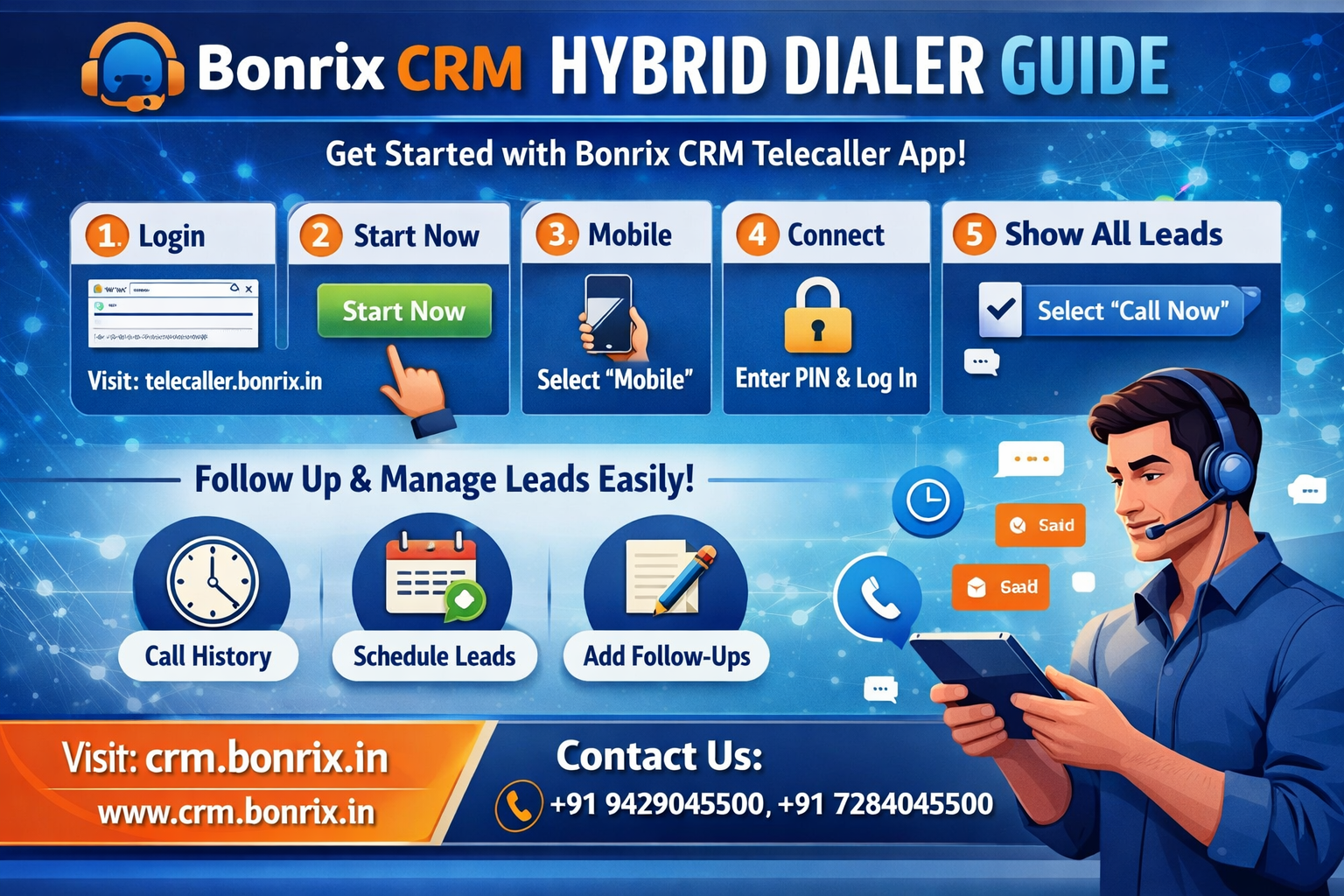
Step-by-Step Instructions
02. START NOW
Click the "Start Now" button on the main dashboard.
03. MOBILE
Choose the "Mobile" option to sync your Android device.
04. CONNECT
Input your Android PIN as the Telecaller ID and hit "Log In".
05. SHOW ALL LEADS
Use "Call Now" for leads and click "Hang" when finished.
06. FOLLOW-UP
Follow-up popup will appear; manage all tasks in the CRM.
✨ Additional Features
🕒 Call History
📅 Schedule Leads
✏️ Edit Lead Info
🔔 Add Follow-ups
#BonrixCRM #HybridDialerApp #Telecalling #CRMSoftware #LeadManagement #TelecallerGuide #CustomerEngagement #BusinessEfficiency #CallManagement #FollowUp #TechTutorial #BonrixSolutions #CustomerRelationshipManagement